

本人最近学习OpenGL编程,现尝试运用OpenGL编写贴纹理并可调整转速的‘流浪地球’,由于要显示出地球在流浪,所以除了要使地球自转外并加多绘制小星星来衬托太空环境。另外在屏幕上显示中文操作说明,这期间遇到的困难可要问DeepSeek这位资深大师了。[在此感慨一下DeepSeek的强劲,它真的让编程事半功倍!]
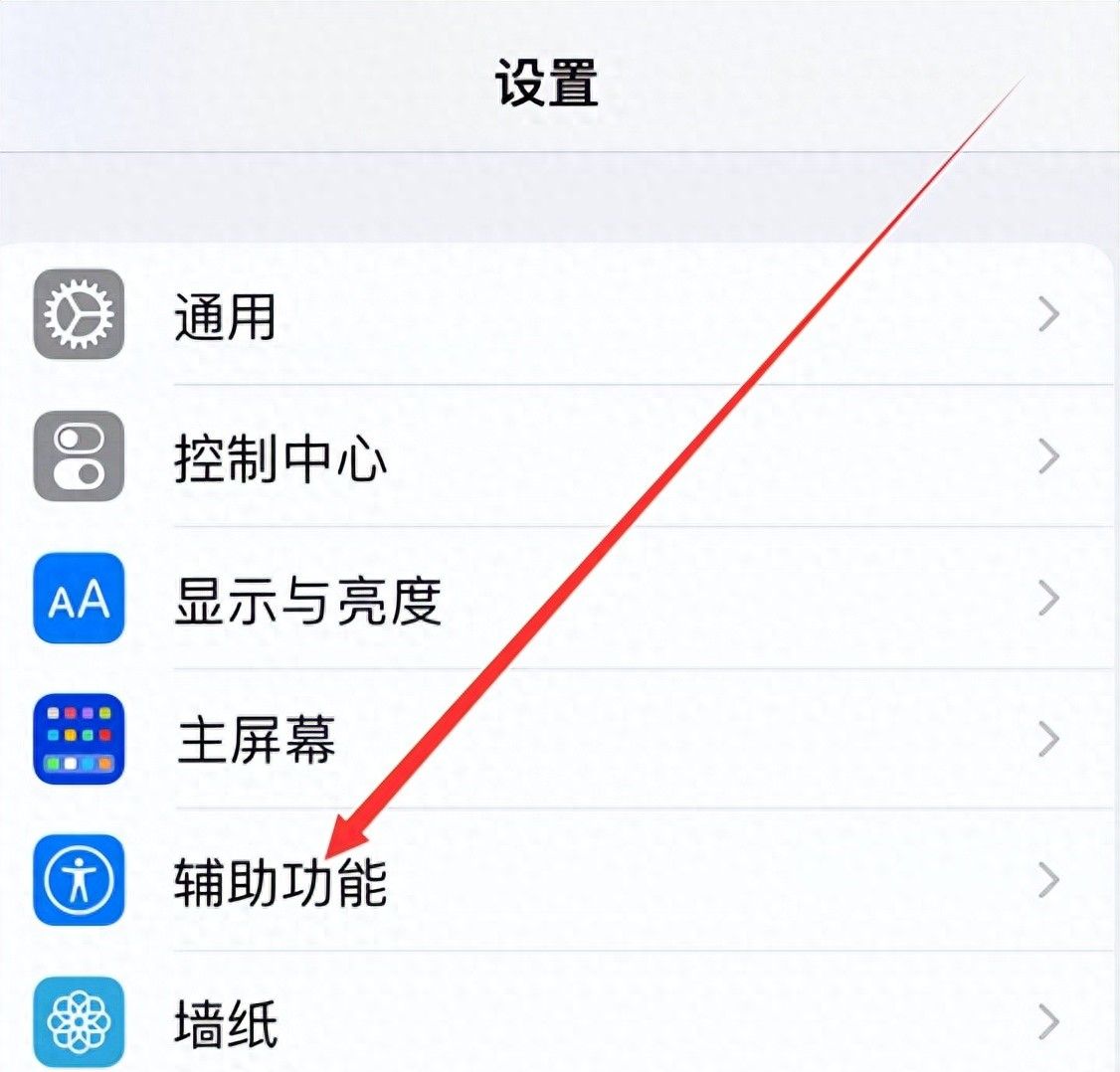
说明:1.本程序所需的SOIL2库文件,也可以通过VS2019本身的NuGet程序包下载安装,这个安装是挺方便的,见下图示;
2.本程序成功编译出的.exe程序还需要依赖本程序编译出来的‘freeglut.dll’这个文件;
3.由于加入显示中文操作(可要将全部的中文字库导入内存中),这导致打开程序运行初始时进出现较长时间的空白屏幕(此时是缓冲数据、像是无反应),这启动时间大约需要20秒;如使用英文则直接可打开程序而不需要缓冲时间;
4.本程序成功在win7/10系统里的VS2019社区版本上运行通过。
NuGet程序包下载安装:

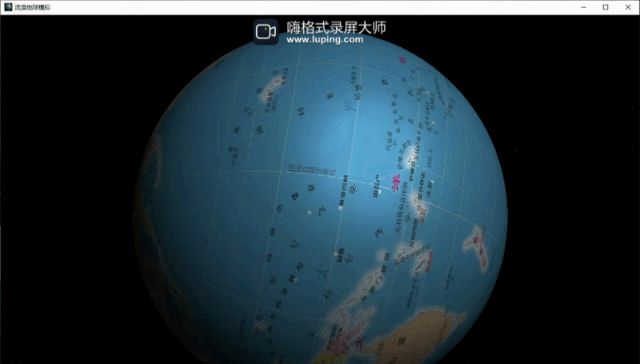
先来看本程序运行结果的GIF动图:
本程序代码如下:
#include <GL/glut.h>
#include <SOIL2/SOIL2.h>
#include <Windows.h> //创建自己图标需要此头件
#include <cmath>
#include <cstdlib>
#include <ctime>
#include <iostream>
#include <string>
constexpr float PI= 3.1415926f;//constexpr定义常量
// 地球旋转角度和速度
float earthRotationAngle = 0.0f;
float rotationSpeed = 0.23f; // 默认地球旋转速度,数值越小,转速越慢
float earthRotationX = 0.0f;
float earthRotationY = 0.0f;
float lastX = 0.0f, lastY = 0.0f;
bool mousePressed = false;
float rotationVelocityX = 0.0f;
float rotationVelocityY = 0.0f;
float damping = 0.95f; // 阻尼系数
// 星星结构体
struct Star {
float x, y, z; // 位置
float r, g, b; // 颜色
float intensity; // 亮度
float speed; // 闪烁速度
};
const int NUM_STARS = 620;
Star stars[NUM_STARS];
// 纹理ID
GLuint earthTexture;
GLuint textureID2;//用于加载说明图片
int imgWidth, imgHeight; // 用于存储说明图片尺寸
// 初始化星星
void initStars() {
/*
srand(time(NULL));
for (int i = 0; i < NUM_STARS; ++i) {
// 随机位置(在单位球面上)
float theta = 2.0f * PI * (rand() / (float)RAND_MAX);//rand()函数提示类型不对出错!
float phi = acos(2.0f * (rand() / (float)RAND_MAX – 1.0f));
float radius = 5.0f + 10.0f * (rand() / (float)RAND_MAX); // 5-15单位距离
stars[i].x = radius * sin(phi) * cos(theta);
stars[i].y = radius * sin(phi) * sin(theta);
stars[i].z = radius * cos(phi);
*/
srand(static_cast<unsigned>(time(NULL))); // 随机位置(在单位球面上)
for (int i = 0; i < NUM_STARS; ++i) {
// 使用浮点常量确保类型正确
float theta = 2.0f * static_cast<float>(PI) * (rand() / static_cast<float>(RAND_MAX));
float phi = acosf(2.0f * (rand() / static_cast<float>(RAND_MAX)) – 1.0f);
float radius = 5.0f + 10.0f * (rand() / static_cast<float>(RAND_MAX));
stars[i].x = radius * sinf(phi) * cosf(theta);
stars[i].y = radius * sinf(phi) * sinf(theta);
stars[i].z = radius * cosf(phi);
// 随机颜色(偏白色)
float color = 0.7f + 0.3f * (rand() / (float)RAND_MAX);
stars[i].r = color;
stars[i].g = color;
stars[i].b = color;
// 随机闪烁参数
stars[i].intensity = 0.3f + 0.7f * (rand() / (float)RAND_MAX);
stars[i].speed = 0.1f + 0.5f * (rand() / (float)RAND_MAX);
}
}
// 加载纹理
GLuint loadTexture(const char* filename) {
GLuint textureID = SOIL_load_OGL_texture(
filename,
SOIL_LOAD_AUTO,
SOIL_CREATE_NEW_ID,
SOIL_FLAG_MIPMAPS | SOIL_FLAG_INVERT_Y | SOIL_FLAG_NTSC_SAFE_RGB | SOIL_FLAG_COMPRESS_TO_DXT
);
if (textureID == 0) {
printf(“SOIL加载错误: ‘%s’
“, SOIL_last_result());
exit(EXIT_FAILURE);
}
glBindTexture(GL_TEXTURE_2D, textureID);
glTexParameteri(GL_TEXTURE_2D, GL_TEXTURE_MIN_FILTER, GL_LINEAR_MIPMAP_LINEAR);
glTexParameteri(GL_TEXTURE_2D, GL_TEXTURE_MAG_FILTER, GL_LINEAR);
glTexParameteri(GL_TEXTURE_2D, GL_TEXTURE_WRAP_S, GL_REPEAT);
glTexParameteri(GL_TEXTURE_2D, GL_TEXTURE_WRAP_T, GL_REPEAT);
return textureID;
}
// 绘制地球
void drawEarth() {
glPushMatrix();
// 应用鼠标旋转
glRotatef(earthRotationX, 1.0f, 0.0f, 0.0f);
glRotatef(earthRotationY, 0.0f, 1.0f, 0.0f);
// 地球旋转
glRotatef(earthRotationAngle, 0.0f, 1.0f, 0.0f);
// 启用纹理
glEnable(GL_TEXTURE_2D);
glBindTexture(GL_TEXTURE_2D, earthTexture);
// 设置材质属性
GLfloat matAmb[] = { 0.2f, 0.2f, 0.2f, 1.0f };
GLfloat matDiff[] = { 0.8f, 0.8f, 0.8f, 1.0f };
GLfloat matSpec[] = { 0.5f, 0.5f, 0.5f, 1.0f };
GLfloat matShine = 30.0f;
glMaterialfv(GL_FRONT, GL_AMBIENT, matAmb);
glMaterialfv(GL_FRONT, GL_DIFFUSE, matDiff);
glMaterialfv(GL_FRONT, GL_SPECULAR, matSpec);
glMaterialf(GL_FRONT, GL_SHININESS, matShine);
// 绘制球体
GLUquadricObj* quadric = gluNewQuadric();
gluQuadricTexture(quadric, GL_TRUE);
gluSphere(quadric, 1.8, 64, 64);//设置地球大小,原来设置(quadric, 1.0, 64, 64);
gluDeleteQuadric(quadric);
glDisable(GL_TEXTURE_2D);
glPopMatrix();
}
// 绘制星星
void drawStars() {
glDisable(GL_LIGHTING); //设置禁用光照效果,即星星不受光照影响
glBegin(GL_POINTS);
for (int i = 0; i < NUM_STARS; ++i) {
// 更新星星亮度(模拟闪烁)
stars[i].intensity += stars[i].speed * 0.01f;
if (stars[i].intensity > 1.0f || stars[i].intensity < 0.3f) {
stars[i].speed = -stars[i].speed;
}
// 设置颜色和大小
glColor3f(stars[i].r * stars[i].intensity,
stars[i].g * stars[i].intensity,
stars[i].b * stars[i].intensity);
//glEnable(GL_PROGRAM_POINT_SIZE);//需要开启修改点大小的功能,此函数要需要头文件<glad/glad.h> ,或者GLEW的 <GLFW/glfw3.h,但这又与<GL/glut.h>头文件发生冲突
//glPointSize(1.0f + 2.0f * stars[i].intensity); //在着色器程序中,可能需要启用glEnable(GL_PROGRAM_POINT_SIZE)才能使用程序控制点大小,无开启导致不行!
//glPointSize(25.0f); 与 glBegin(GL_POINTS);组合设置也不行!
// 绘制星星
glVertex3f(stars[i].x, stars[i].y, stars[i].z);
}
glEnd();
glEnable(GL_LIGHTING);//设置启用光照效果
}
// 窗口调整大小函数
void reshape(int w, int h) {
glViewport(0, 0, w, h);
glMatrixMode(GL_PROJECTION);
glLoadIdentity();
gluPerspective(45.0, (double)w / (double)h, 0.1, 100.0);
}
// 空闲函数(用于动画)
void idle() {
earthRotationAngle += rotationSpeed;
if (earthRotationAngle > 360.0f) {
earthRotationAngle -= 360.0f;
}
if (!mousePressed && (fabs(rotationVelocityX) > 0.1f || fabs(rotationVelocityY) > 0.1f)) {
earthRotationX += rotationVelocityX;
earthRotationY += rotationVelocityY;
rotationVelocityX *= damping;
rotationVelocityY *= damping;
glutPostRedisplay();
}
glutPostRedisplay();
}
// 键盘控制函数
void keyboard(unsigned char key, int x, int y) {
switch (key) {
case ‘+’: // 加快旋转速度
rotationSpeed += 0.1f;
break;
case ‘-‘: // 减慢旋转速度
rotationSpeed -= 0.1f;
if (rotationSpeed < 0.0f) rotationSpeed = 0.0f;
break;
case ‘0’: // 按‘0’停止旋转
rotationSpeed = 0.0f;
break;
case 27: // ESC键退出
exit(0);
break;
}
}
void mouseButton(int button, int state, int x, int y) {
if (button == GLUT_LEFT_BUTTON) {
if (state == GLUT_DOWN) {
mousePressed = true;
lastX = x;
lastY = y;
}
else {
mousePressed = false;
}
}
}
// 修改mouseMove函数
void mouseMove(int x, int y) {
if (mousePressed) {
// 计算鼠标移动距离
float dx = x – lastX;
float dy = y – lastY;
// 更新旋转角度
earthRotationY += dx * 0.5f; // 绕Y轴旋转
earthRotationX += dy * 0.5f; // 绕X轴旋转
// 限制X轴旋转角度在-90到90度之间
if (earthRotationX > 90.0f) earthRotationX = 90.0f;
if (earthRotationX < -90.0f) earthRotationX = -90.0f;
lastX = x;
lastY = y;
glutPostRedisplay(); // 请求重绘
}
}
//—–以下为显示中文字部分—–
// 初始化中文字体
GLuint fontBase = 0;// 存储显示字体列表基址
void initFont() {
HDC hdc = wglGetCurrentDC();
LOGFONTW lf;
memset(&lf, 0, sizeof(LOGFONTW));
lf.lfHeight = -20; //使用字符高度,即定义字体大小(带符号值表明准确匹配)
lf.lfCharSet = GB2312_CHARSET;
wcscpy_s(lf.lfFaceName, LF_FACESIZE, L”宋体”);//使用微软雅黑,并可直接改变字体,如改为:微软雅黑、楷体等
HFONT hFont = CreateFontIndirectW(&lf);
HFONT hOldFont = (HFONT)SelectObject(hdc, hFont);
// 生成ASCII及常用汉字对应的显示列表(示例范围)
fontBase = glGenLists(65535); // 覆盖所有Unicode基本多语言平面字符
wglUseFontBitmapsW(hdc, 0, 65535, fontBase);
SelectObject(hdc, hOldFont);
DeleteObject(hFont);
}
// 绘制宽字符字符串
void drawWString(const wchar_t* str) {
glPushMatrix();
glListBase(fontBase); // 设置显示列表基址
glCallLists(wcslen(str), GL_UNSIGNED_SHORT, str);
glPopMatrix();
}
// 多字节转宽字符
std::wstring multiByteToWide(const std::string& str) {
int len = MultiByteToWideChar(CP_ACP, 0, str.c_str(), -1, NULL, 0);
std::wstring wstr(len – 1, 0);
MultiByteToWideChar(CP_ACP, 0, str.c_str(), -1, &wstr[0], len);
return wstr;
}
//创建在屏幕上显示文字的函数
void renderText(float x, float y, const std::string& text) {
//glDisable(GL_LIGHTING); // 设置禁用光照效果,即文字不受光照影响
glMatrixMode(GL_PROJECTION);//设置当前矩阵模式:投影矩阵模式。
glPushMatrix();//用于将当前矩阵复制并压入矩阵堆栈中。这意味着在调用glPushMatrix之后,所有的矩阵操作都会基于新的复制矩阵进行,而不会影响之前的矩阵状态。
glLoadIdentity();//将当前矩阵重置为单位矩阵,这样可以确保后续的变换操作是在一个统一的状态下进行,避免不同帧之间的相互影响
gluOrtho2D(0, glutGet(GLUT_WINDOW_WIDTH), 0, glutGet(GLUT_WINDOW_HEIGHT));//用来指定屏幕区域对应的模型坐标范围,自己所绘制的图形的坐标必须在这个范围内,不然看不到绘制的图形。
glMatrixMode(GL_MODELVIEW);//设置当前矩阵模式:模型视景矩阵模式。
glLoadIdentity();
glColor3f(1.0, 1.0, 1.0); //设置文字颜色为白色;设置为其它颜色如(1.0, 0.0, 1.0)品红色是不起作用的
glRasterPos2f(x, y);//设置文字输出位置,这’y’位置是从屏幕底部起计算的
drawWString(multiByteToWide(text).c_str());
/*
for (const char& c : text) { glutBitmapCharacter(GLUT_BITMAP_HELVETICA_18, c);//设置文字大小,- 18点Helvetica字体
}
*/
//===下面四行代码是设置:恢复之前保存的投影矩阵和模型视图矩阵状态。这种代码常见于临时修改矩阵状态后需要还原的场景===
glPopMatrix();
glMatrixMode(GL_PROJECTION);
glPopMatrix();
glMatrixMode(GL_MODELVIEW);//是这样设置后才能显示文字,但经这样设置后,文字的颜色只能是默认的白色了(由于其它矩阵默认颜色是白色)
//glEnable(GL_LIGHTING);//设置启用光照效果
}
//—–以上为编写显示中文文字部分—
// 显示函数
void display() {
glClear(GL_COLOR_BUFFER_BIT | GL_DEPTH_BUFFER_BIT);
glMatrixMode(GL_MODELVIEW);
glLoadIdentity();
// 设置相机位置
gluLookAt(0.0, 0.0, 5.0, // 相机位置
0.0, 0.0, 0.0, // 观察点
0.0, 1.0, 0.0); // 上向量
// 绘制场景
drawStars();
drawEarth();
// 显示文字
glColor3f(1.0, 1.0, 1.0); //设置文字颜色为白色;设置为其它颜色如(1.0, 0.0, 1.0)品红色是不起作用的
// renderText(10, 80, “Tips3: You can Press the ‘Esc’ key to Exit.”);
// renderText(10, 60, “Tips2: You can use the ‘+/-‘ keys on the keyboard to adjust the rotation speed /”);
// renderText(10, 40, ” / and Press the 0 key to stop rotating.”);
// renderText(10, 20, “Tips1: You can control the rotation angle with the mouse: drag the cube freely to change the rotation angle.”);
renderText(10, 25, “3.可用鼠标控制旋转角度和方向:任意拖动球体改变旋转角度和方向- -3个轴向方向.”);
renderText(10, 52, “2.旋转速度调整:用键盘的’ + / -‘键调整速度、按’0’键停止旋转.”);
renderText(10, 80, “1.按‘Esc’键可退出.”);
renderText(10, 105, “提示:”);
glDisable(GL_TEXTURE_2D);
glutSwapBuffers();// 对于双缓冲模式很重大
}
// 初始化函数
void init() {
glClearColor(0.0f, 0.0f, 0.0f, 1.0f); // 黑色背景
glEnable(GL_DEPTH_TEST);
// 启用光照(用于地球)
glEnable(GL_LIGHTING);
glEnable(GL_LIGHT0);
// 设置光源
GLfloat lightPos[] = { 4.0f, 5.0f, 3.0f, 1.5f };//{ 5.0f, 5.0f, 5.0f, 1.0f };
GLfloat lightAmb[] = { 0.2f, 0.2f, 0.2f, 1.0f };
GLfloat lightDiff[] = { 0.8f, 0.8f, 0.8f, 1.0f };
GLfloat lightSpec[] = { 1.0f, 1.0f, 1.0f, 1.0f };
glLightfv(GL_LIGHT0, GL_POSITION, lightPos);
glLightfv(GL_LIGHT0, GL_AMBIENT, lightAmb);
glLightfv(GL_LIGHT0, GL_DIFFUSE, lightDiff);
glLightfv(GL_LIGHT0, GL_SPECULAR, lightSpec);
// 加载地球纹理
earthTexture = loadTexture(“Earth.jpg”);
// 初始化星星
initStars();
initFont(); // 初始化字体
}
// 主函数
int main(int argc, char** argv) {
// 隐藏控制台窗口(仅适用于 Windows)
HWND hwnd = GetConsoleWindow();
ShowWindow(hwnd, SW_HIDE); // SW_HIDE 隐藏,SW_SHOW 显示
glutInit(&argc, argv);
glutInitDisplayMode(GLUT_DOUBLE | GLUT_RGB | GLUT_DEPTH);// 双缓冲模式以支持平滑动画。
glutInitWindowSize(1300, 820);//创建自己的窗口
glutCreateWindow(“流浪地球模拟”);
//printf(“OpenGL Version: %s
“, glGetString(GL_VERSION));//获取 OpenGL 版本,自己版本为3.1版本
init();
glutDisplayFunc(display);
glutReshapeFunc(reshape);
glutMouseFunc(mouseButton);
glutMotionFunc(mouseMove);
glutIdleFunc(idle);
glutKeyboardFunc(keyboard);
glutMainLoop();
return 0;
}
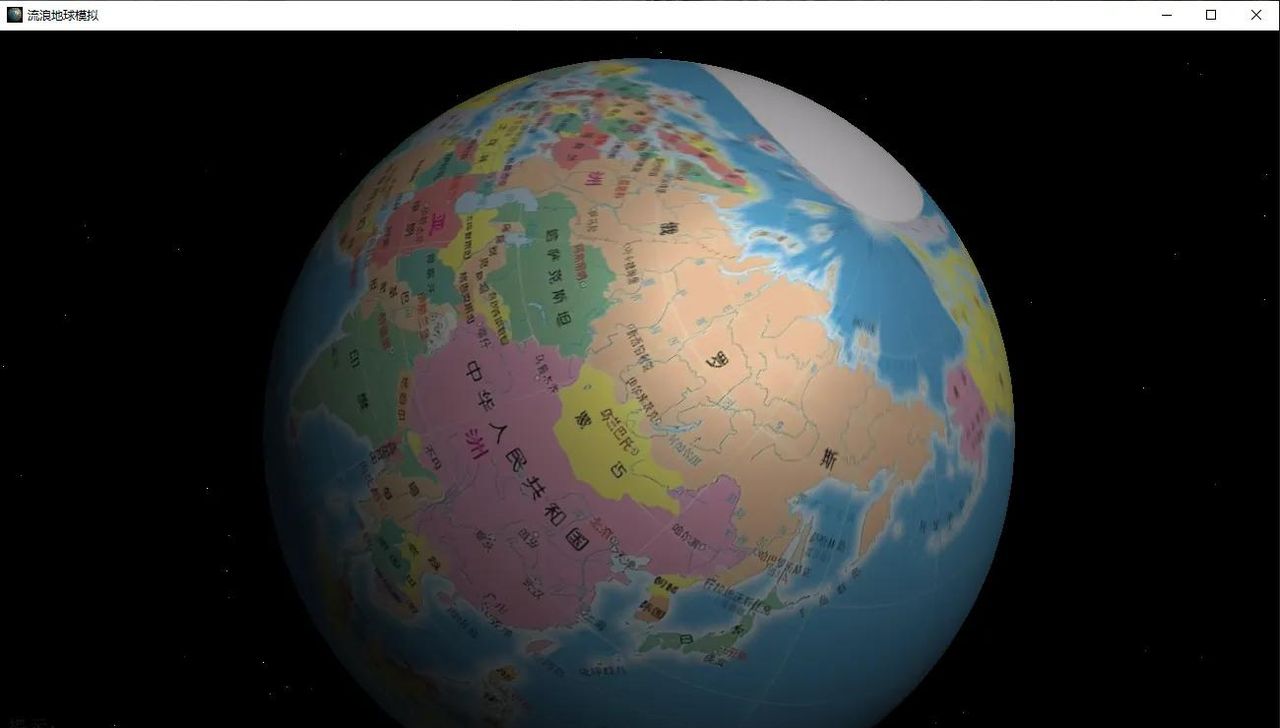
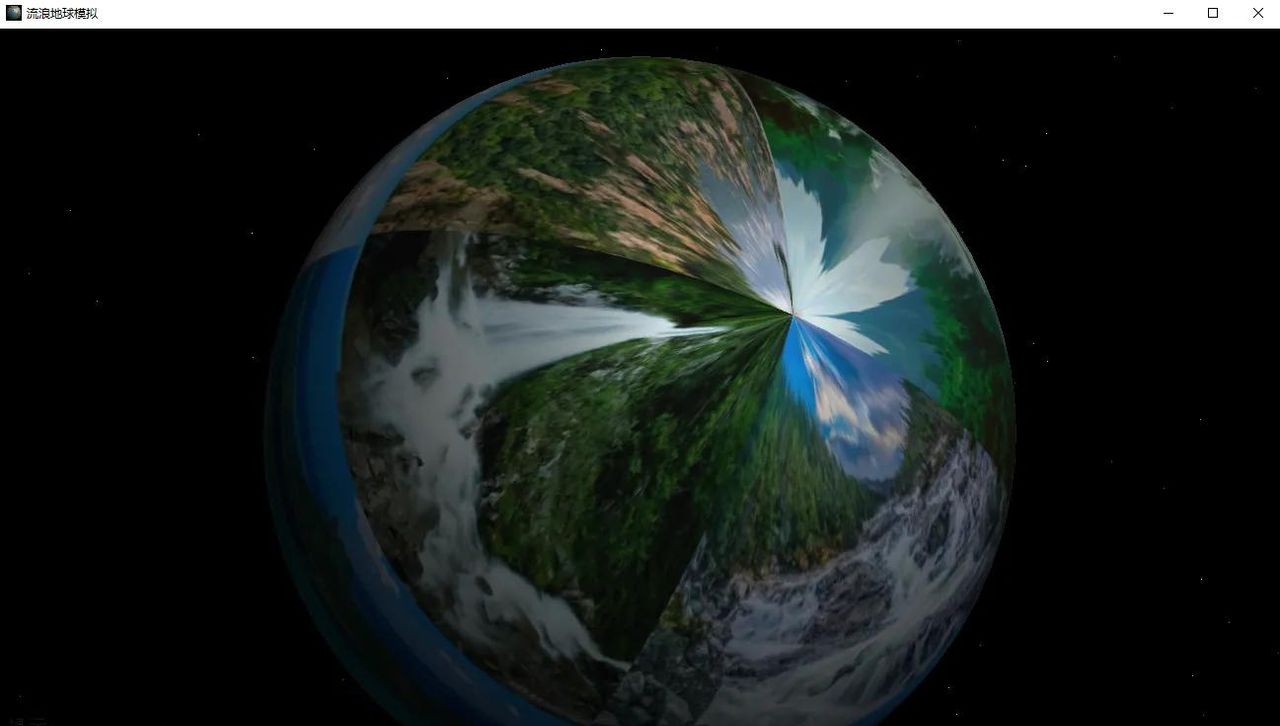
运行结果图:
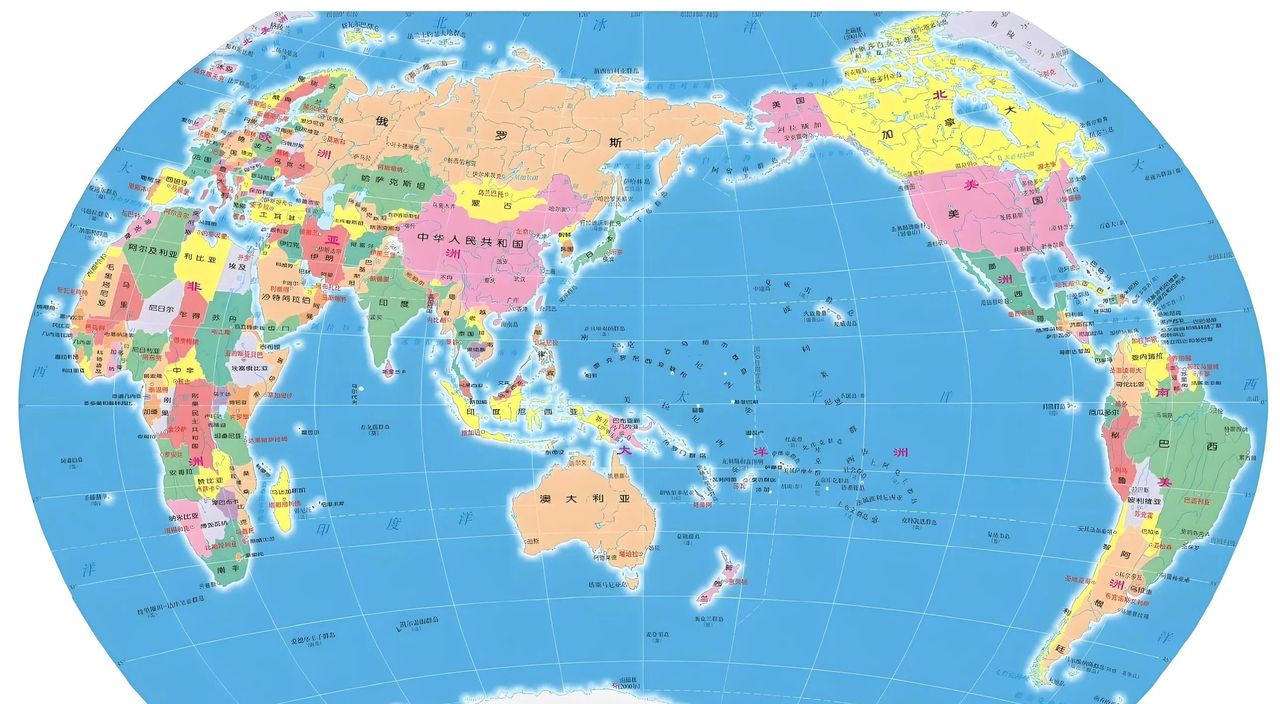
附贴图图片:





















暂无评论内容