

在做单机软件开发的过程中,如果我们使用influxdb,且希望用户无感,需要完成在自己的程序中对influxdb服务进行开启和关闭管理
准备工站
influxdb服务软件放入项目中

属性更改
让软件内容复制到编译后后的目录中
全选文件,修改属性为:如果较新则复制
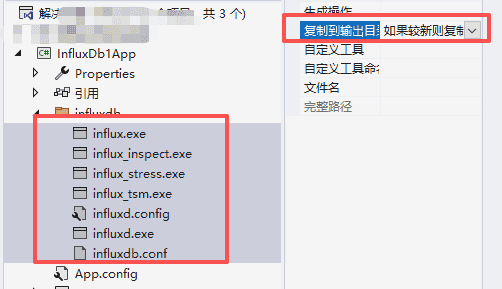
示例
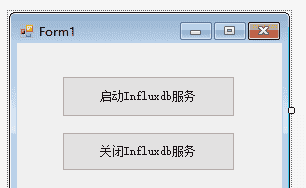
启动
influxdb的启动,停止实现方式:
使用一个新的进程
Process
ProcessStartInfo
            // 创建进程启动信息
            ProcessStartInfo startInfo = new ProcessStartInfo();
            startInfo.FileName = fullExePath;
            startInfo.Arguments = $"-config "{fullConfigPath}""; // 命令参数
            startInfo.WorkingDirectory = influxdPath; // 设置工作目录为软件所在目录
            startInfo.UseShellExecute = false; // 不使用操作系统shell启动
            startInfo.RedirectStandardOutput = true; // 重定向输出
            startInfo.RedirectStandardError = true; // 重定向错误输出
            startInfo.CreateNoWindow = true; // 显示命令窗口
启动代码如下:
    public static void StartInfluxd(string influxdPath)
    {
        string executableName = "influxd.exe";
        string configFileName = "influxd.config";

        // 构建完整路径
        string fullExePath = Path.Combine(influxdPath, executableName);
        string fullConfigPath = Path.Combine(influxdPath, configFileName);

        // 检查文件是否存在
        if (!File.Exists(fullExePath))
        {
            throw new Exception($"错误: 未找到 {fullExePath}");
        }

        if (!File.Exists(fullConfigPath))
        {
            throw new Exception($"错误: 未找到配置文件 {fullConfigPath}");
        }

        try
        {
            // 创建进程启动信息
            ProcessStartInfo startInfo = new ProcessStartInfo();
            startInfo.FileName = fullExePath;
            startInfo.Arguments = $"-config "{fullConfigPath}""; // 命令参数
            startInfo.WorkingDirectory = influxdPath; // 设置工作目录为软件所在目录
            startInfo.UseShellExecute = false; // 不使用操作系统shell启动
            startInfo.RedirectStandardOutput = true; // 重定向输出
            startInfo.RedirectStandardError = true; // 重定向错误输出
            startInfo.CreateNoWindow = true; // 显示命令窗口

            // 启动进程
            Console.WriteLine("正在启动InfluxDB服务...");
            Process process = new Process();
            _influxdProcess = process;
            process.StartInfo = startInfo;
            process.OutputDataReceived += (sender, e) =>
            {
                if (!string.IsNullOrEmpty(e.Data))
                    Console.WriteLine(e.Data);
            };
            // ErrorDataReceived 错误信息,此时显示的输出信息,不能作为错误判断`
            process.ErrorDataReceived += (sender, e) =>
            {
                if (!string.IsNullOrEmpty(e.Data))
                    Console.WriteLine($"FluxInfo:{e.Data}");
            };

            process.Start();
            process.BeginOutputReadLine();
            process.BeginErrorReadLine();
        }
        catch (Exception ex)
        {
            throw new Exception($"启动过程中发生错误: {ex.Message}");
        }
    }
停止
我们将对应的
Process
public static void StopInfluxd()
{
    if (_influxdProcess == null || _influxdProcess.HasExited)
    {
        Console.WriteLine("InfluxDB 未运行");
        return;
    }

    try
    {
        // 尝试正常关闭
        _influxdProcess.CloseMainWindow();

        // 等待5秒正常退出
        if (!_influxdProcess.WaitForExit(5000))
        {
            // 强制终止
            _influxdProcess.Kill();
            Console.WriteLine("已强制终止 InfluxDB 进程");
        }
        else
        {
            Console.WriteLine("InfluxDB 已正常关闭");
        }
    }
    catch (Exception ex)
    {
        Console.WriteLine($"停止失败: {ex.Message}");
    }
    finally
    {
        _influxdProcess.Dispose();
        _influxdProcess = null;
    }
}
判断进程是否启动
public static bool IsRunning => _influxdProcess != null && !_influxdProcess.HasExited;
判断是否联通
在上面过程中,我们可以判断服务的启停,但实际应用中,
Process
InfluxDbClient
ping
封装
InfluxApi
   public class InfluxApi
   {
       private static readonly InfluxDbClient _influxDbClient;
       // 静态构造函数
       // .NET运行时保证:
       // 1. 静态构造函数只会执行一次
       // 2. 自动实现线程安全(内部加锁)
       static InfluxApi()
       {
           // 初始化InfluxDB客户端
           _influxDbClient = new InfluxDbClient(
               "http://localhost:8086/",
               "", "",
               InfluxDbVersion.Latest); // 根据你的版本调整
       }
       /// <summary>
       /// 判断是否联通
       /// </summary>
       /// <returns></returns>
       public static async Task<bool> IsConnected()
       {
           try
           {
               var response = await _influxDbClient.Diagnostics.PingAsync();
               Console.WriteLine($"response.success----{response.Success}");
               return response.Success;
           }
           catch (Exception)
           {
               throw;
           }
       }
   }
influxdb 数据存储路径
默认存储路径
![图片[1] - C# 中使用 Influxdb 1.x(四)——在程序内管理Influxdb服务的启停 - 宋马](https://pic.songma.com/blogimg/20251120/b887928b57274a7d95f1ec1985dfc048.png)
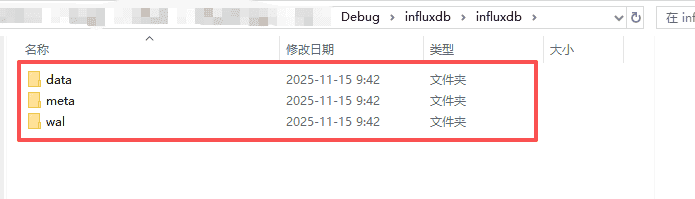
如果一台电脑装有多个程序使用influxdb数据库,不同程序间操作设置可能存在冲突,怎么样当前程序存在在安装目录下呢?使用相对路径配置,更改配置文件
influxd.config
![图片[2] - C# 中使用 Influxdb 1.x(四)——在程序内管理Influxdb服务的启停 - 宋马](https://pic.songma.com/blogimg/20251120/dc2ef9a732ad4c8bb9f0298d26aa1444.png)
则数据文件存在于当前目录
© 版权声明
文章版权归作者所有,未经允许请勿转载。如内容涉嫌侵权,请在本页底部进入<联系我们>进行举报投诉!
THE END




















暂无评论内容